User Guide
Introduction
OverBooked is a desktop, keyboard-first planner that unifies contacts, events, and todos in one fast, modern interface.
It solves slow, click-heavy planning by letting you type to act - add/find/update in seconds, filter instantly, and link people to events/todos while spotting schedule overlaps at a glance. The appeal: crisp speed, minimal friction, and a workflow built for event planners who want proficiency without fuss.
📖 Table of Contents
Quick start
Follow these steps to get started with OverBooked in under 10 minutes:
-
Install Java
17For Windows users:
- Follow the Java Installation Guide.
- To open PowerShell (Windows terminal), press the Windows key, type PowerShell, press Enter.
- To verify that the installation was successful, close PowerShell, open it again, then run
java -version. You should see something likejava version "17.x.x". - If you have multiple versions of
Javainstalled, refer to this Switching between Java versions Guide.
For macOS users:
- Follow the Java Installation Guide.
- To open Terminal (macOS terminal), press ⌘ Space (Spotlight), type Terminal, press return.
- To verify that the installation was successful, close Terminal, open it again, then run
java -version. You should see the version information forJava 17.0.14.fx-zulu. - If you have multiple versions of
Javainstalled, refer to this Switching between Java versions Guide. (Commands are to be run inside Terminal)
-
Download the App
- Find the latest version of OverBooked from our Releases Page, and click on
OverBooked.jarwhich should start the download automatically.
- Find the latest version of OverBooked from our Releases Page, and click on
-
Set up your workspace
- Go to your Downloads folder to verify that
OverBooked.jarhas been downloaded into your PC. - Drag and drop
OverBooked.jarinto a folder of your choice — this will be your OverBooked home folder.
- Go to your Downloads folder to verify that
-
Run the app
For Windows users:
- Open the folder containing
OverBooked.jar. - Double-click on
OverBooked.jarto run the application.
For macOS users:
- In the Terminal window, type
cdand press the return key. - Go back to Terminal and type
cdand press the SpaceBar key, do not press the return key yet. - Open your Finder and locate the folder that contains
OverBooked.jar. - Drag the folder that contains
OverBooked.jarinto the Terminal. This should paste some text into the Terminal window. Press the return key. - In the Terminal window, paste
java -jar OverBooked.jarand press the return key.
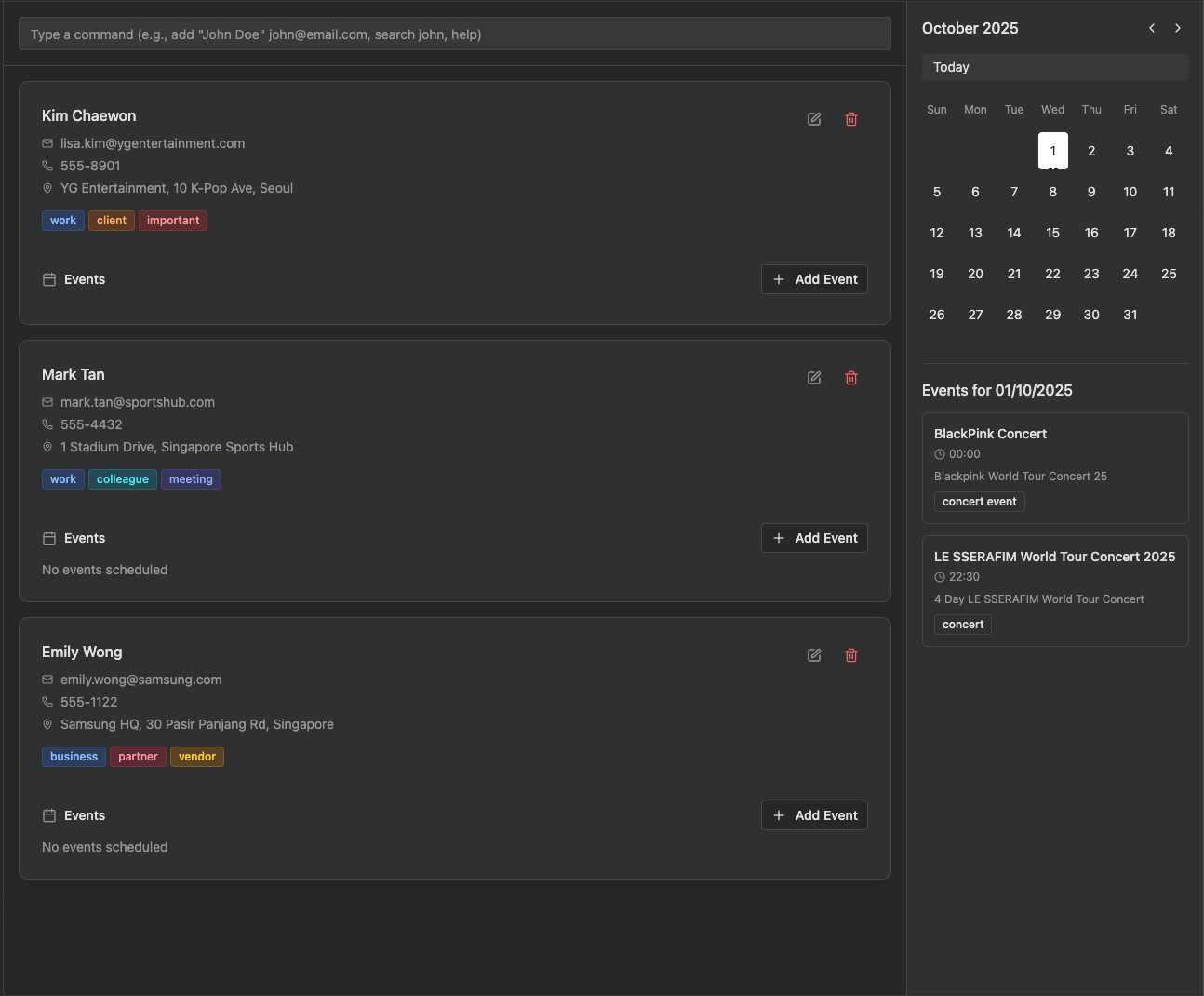
You should see a window like this:
- Open the folder containing
-
Try these Commands
-
help: Open the help window. -
list-contacts: Lists all contacts. -
add-contact n/John Doe p/98765432 e/johnd@example.com a/John street, block 123, #01-01: Adds a contact namedJohn Doeto the Address Book. -
clear: Clears all entries in the book. -
exit: Exits the app.
-
Refer to the Features below for details of each command.
User Interface Tutorial
General User Interface
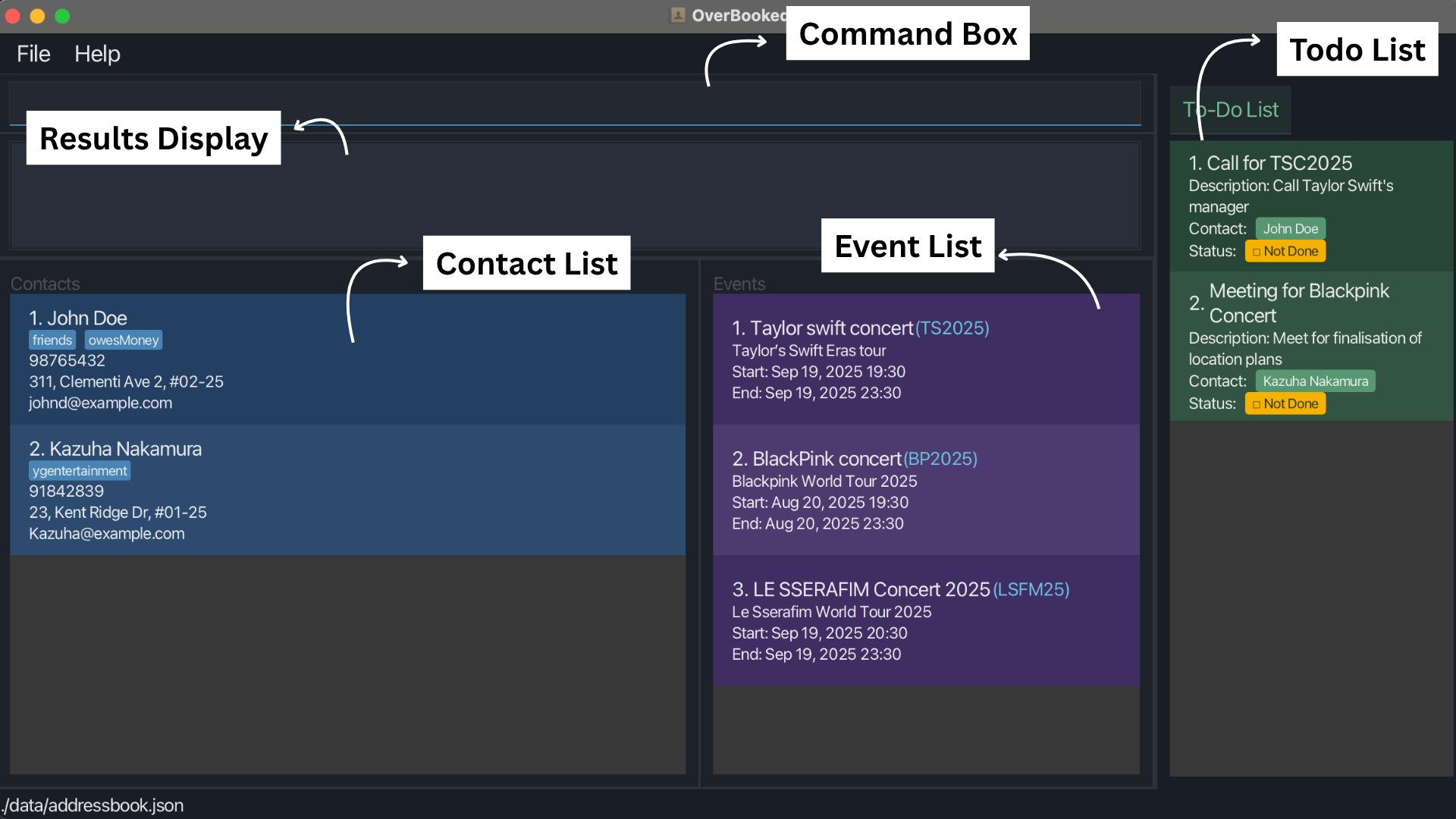
Our modern graphical user interface displays all your information in an organised and distinguishable manner, making multitasking more efficient.
| Component | Description |
|---|---|
| Menu Bar | For navigation to File or Help. |
| Command Box | Where the command inputs are typed in. |
| Results Display | Displays notifications for errors or successful commands. |
| Contact List | Shows the contact list based on requested filters. |
| Event List | Shows the event list based on requested filters. |
| Todo List | Shows the todo list based on requested filters. |
Contact Card
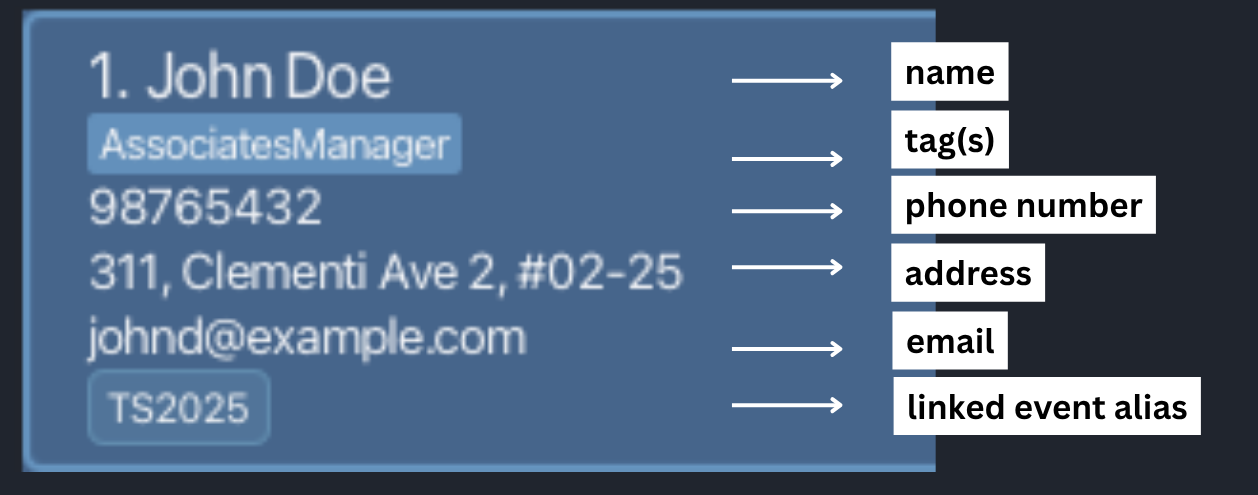
Each contact card will reflect (from top to bottom), the contact’s name, tag(s), phone number, address, email and linked event
Event Card
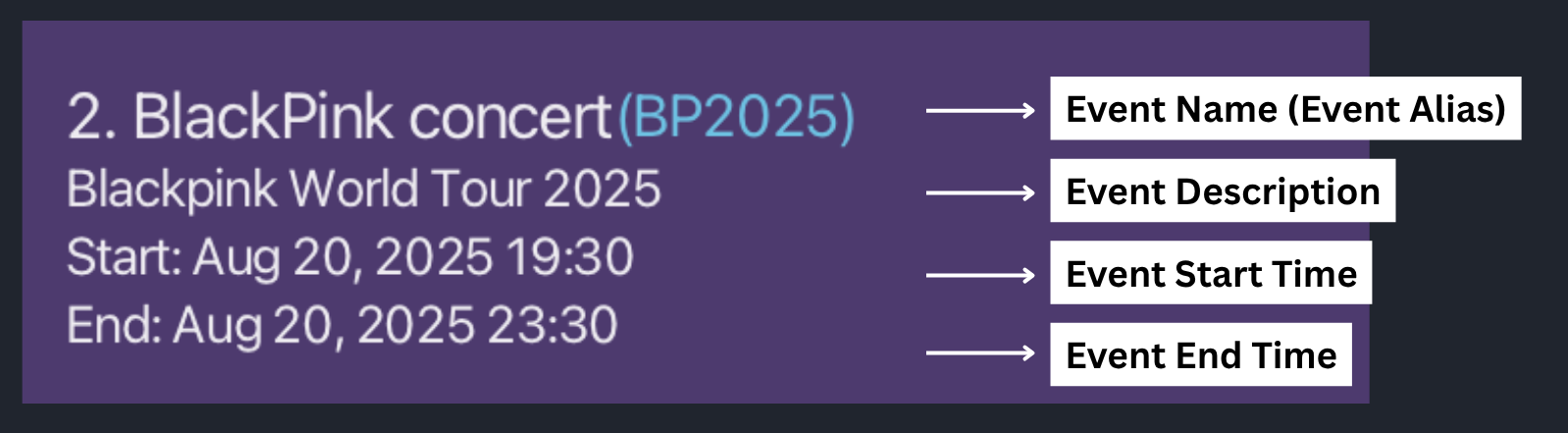
Each event card will reflect (from top to bottom), the event’s name with alias, event description, start and end time.
Todo card
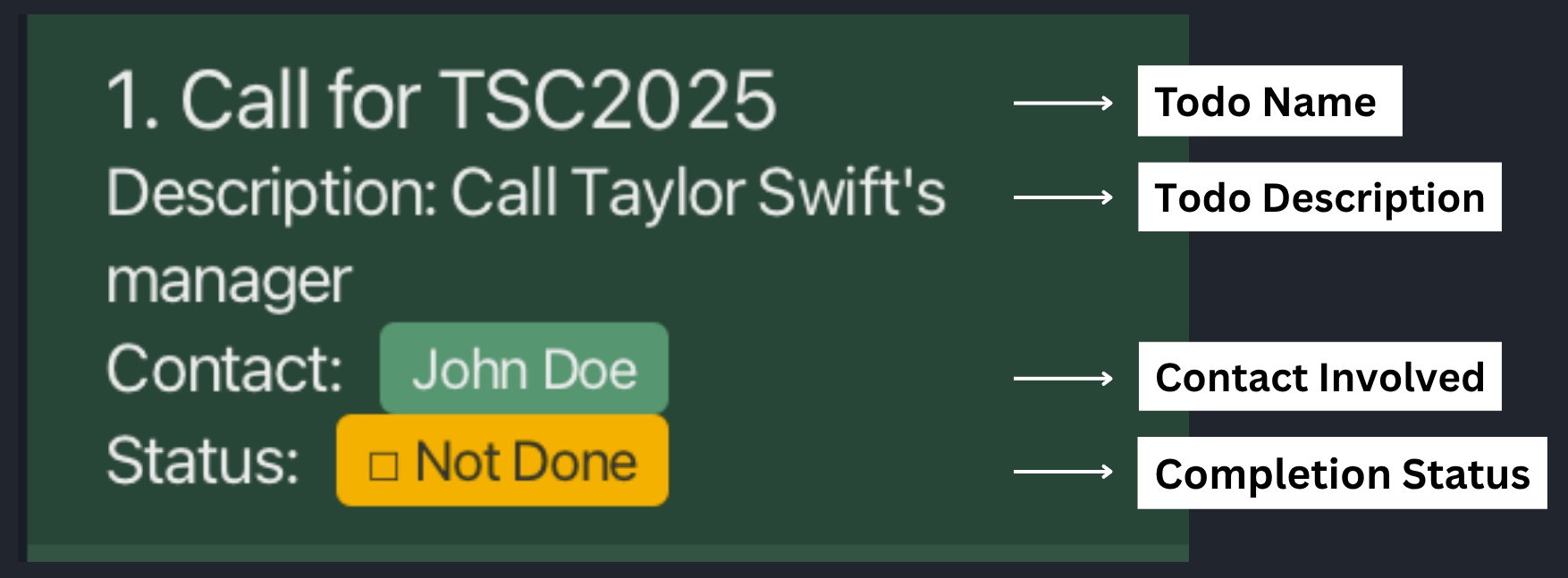
Each todo card will reflect (from top to bottom), the todo’s name, todo description, linked contact involved and completion status.
Features
Introduction to Prefixes
| Prefix | Constraint(s) |
|---|---|
n/ (Name) |
Alphanumeric characters, spaces and slashes(/) only. Cannot be blank or start with a slash. |
p/ (Phone) |
Numbers only, at least 3 digits. |
e/ (Email) |
Must follow format: local-part@domain. Local-part: Alphanumeric characters and +, _, ., - (not at start/end). Domain: period-separated labels starting/ending with alphanumeric characters, last label at least 2 consecutive alphanumeric characters . |
a/ (Address) |
Any value; cannot be blank. |
t/ (Tag) |
Alphanumeric characters only, minimum 1 character. |
en/ (Event Name) |
1-50 chars; letters, numbers, spaces, apostrophes (‘), hyphens (-), ampersands (&), commas (,); trimmed. |
ea/ (Event Alias) |
1-20 chars; alphanumeric characters, hyphens (-), underscores (_); cannot be blank. |
st/, et/ (DateTime) |
Format: yyyy-MM-dd HH:mm (e.g., 2025-09-19 19:30). Must be valid date and time. |
d/ (Event Desc) |
1-50 chars (including special characters like slashes); must be non-empty after trimming whitespace. |
tn/ (Todo Name) |
1-50 chars; letters, numbers, spaces, apostrophes (‘), hyphens (-), ampersands (&), commas (,), slashes (/); trimmed. |
td/ (Todo Desc) |
1-50 chars (including special characters like slashes); must be non-empty after trimming whitespace. |
INDEX |
Positive integer, non-zero (used for selecting list items). |
 Notes about the command format:
-
All fields will be automatically trimmed (no spacing before or after each parameter) when input inside the command.
-
Words in
UPPER_CASEare the parameters to be supplied by the user.
e.g. inadd-contact n/NAME,NAMEis a parameter which can be used asadd n/John Doe. -
Items in square brackets are optional.
e.gn/NAME [t/TAG]can be used asn/John Doe t/friendor asn/John Doe. -
Items with
<blank>means that an empty field (i.e. “ “) can be used to define nothing for supported commands -
Items with
… after them can be used multiple times including zero times.
e.g.[t/TAG]…can be used ast/friend,t/friend t/familyetc. -
Parameters can be in any order.
e.g. if the command specifiesn/NAME p/PHONE_NUMBER,p/PHONE_NUMBER n/NAMEis also acceptable. -
Extraneous parameters for the commands
help,exitandclearwill be ignored.
e.g. if the command specifieshelp 123, it will be interpreted ashelp. -
If you are using a PDF version of this document, be careful when copying and pasting commands that span multiple lines as space characters surrounding line-breaks may be omitted when copied over to the application.
Viewing help : help
Shows a message explaining how to access the help page.

Format: help
Contacts
❗Contact names must be unique (case-insensitive). Adding a contact whose name matches an existing one—ignoring letter case—will result in an error.
Adding a person: add-contact
Adds a person to the address book. A person is uniquely identified only by their name in OverBooked; that is, 2 contacts are considered different people as long as their names are different in a case-insensitive comparison.
The command will remove any filters currently in the contact list after execution.
Format: add-contact n/NAME p/PHONE_NUMBER e/EMAIL a/ADDRESS [t/TAG]…
 Tip:
A person can have any number of tags (including 0)
Tags are case-insensitive, meaning
Tip:
A person can have any number of tags (including 0)
Tags are case-insensitive, meaning t/EMERGENCY and t/emergency will return only the first tag mentioned.
Examples:
add-contact n/John Doe p/98765432 e/johnd@example.com a/John street, block 123, #01-01add-contact n/Betsy Crowe t/friend e/betsycrowe@example.com a/Yishun block 53 p/1234567 t/manager
Listing all persons : list-contacts
Shows a list of all persons in the address book. This removes any filters currently in the contact list.
Format: list-contacts
Editing a person : edit-contact
Edits an existing person in the address book. This removes any filters currently in the contact list.
Format: edit-contact INDEX [n/NAME] [p/PHONE] [e/EMAIL] [a/ADDRESS] [t/TAG]…
- Edits the person at the specified
INDEX. - The index refers to the index number shown in the displayed person list.
- The index must be a positive integer 1, 2, 3, …
- At least one of the optional fields must be provided.
- Existing values will be updated to the input values.
- When editing tags, the existing tags of the person will be removed i.e adding of tags is not cumulative.
- Tags are case-insensitive, meaning
t/EMERGENCYandt/emergencywill return only the first tag mentioned - You can remove all the person’s tags by typing
t/without specifying any tags after it.
Examples:
-
edit-contact 1 p/91234567 e/johndoe@example.comEdits the phone number and email address of the 1st person to be91234567andjohndoe@example.comrespectively. -
edit-contact 2 n/Betsy Crower t/Edits the name of the 2nd person to beBetsy Crowerand clears all existing tags.
Finding persons by name: find-contacts
Finds persons whose names contain any of the given keywords.
Format: find-contacts n/KEYWORD [MORE_KEYWORDS]
- The search is case-insensitive. e.g
hanswill matchHans - The order of the keywords does not matter. e.g.
Hans Bowill matchBo Hans - Only the name is searched.
- Only full words will be matched e.g.
Hanwill not matchHans - Persons matching at least one keyword will be returned (i.e.
ORsearch). e.g.Hans Bowill returnHans Gruber,Bo Yang
Tip:
list-contacts can be used to remove the filter. add-contact and edit-contact will also remove the filter after its execution.
Examples:
-
find-contacts n/JohnreturnsjohnandJohn Doe -
find-contacts n/alex davidreturnsAlex Yeoh,David Li
Deleting a person : delete-contact
Deletes the specified person from the address book.
Format: delete-contact INDEX
- Deletes the person at the specified
INDEX. - The index refers to the index number shown in the displayed person list.
- The index must be a positive integer 1, 2, 3, …
Examples:
-
list-contactsfollowed bydelete-contact 2deletes the 2nd person in the address book. -
find-contacts n/Betsyfollowed bydelete-contact 1deletes the 1st person in the results of thefind-contactscommand.
Events
❗Each event cannot have the same event alias (case-insensitive)
Adding an event: add-event
Adds an event to the address book. An event is uniquely identified only by its alias in OverBooked; that is, 2 events are considered different as long as their aliases are different in a case-insensitive comparison.
The command will remove any filters currently in the event list after execution.
Format: add-event en/EVENT_NAME ea/EVENT_ALIAS st/START_DATETIME et/END_DATETIME d/DESCRIPTION
Examples:
add-event en/Taylor Swift Concert ea/TSC2025 st/2025-09-19 19:30 et/2025-09-19 23:30 d/Taylor's Swift Eras tour
Linking an event: link-event
Links a given contact (by index based on displayed list) to an event (by alias).
❗Each contact can only link to one specific event.
❗Linking an event to a contact that already has an event linked, will just update and replace it.
Format: link-event INDEX [MORE_INDEXES] ea/EVENT_ALIAS
- The index refers to the index number shown in the displayed person list.
- The index must be a positive integer 1, 2, 3, …
Examples:
link-event 1 ea/TSC2025link-event 1 2 ea/OL2028
Unlinking an event: unlink-event
Unlink any given contact (by index based on displayed list) from an event.
❗Unlinking an event from an unlinked person, will show that he/she is unlinked again.
Format: unlink-event INDEX [MORE_INDEXES]
- The index refers to the index number shown in the displayed person list.
- The index must be a positive integer 1, 2, 3, …
Examples:
unlink-event 1 2
Listing all events : list-events
Shows a list of all events in the address book. This removes any filters currently in the event list.
Format: list-events
Editing an event: edit-event
Edits an existing event in the address book. This removes any filters currently in the event list.
Tip:
An EventAlias cannot be edited in order to enforce uniqueness. The event alias field included in the field is to identify which specific event you want to amend.
Format: edit-event ea/EVENT_ALIAS [en/EVENT_NAME] [st/START_DATETIME] [et/END_DATETIME] [d/DESCRIPTION]
- Edits the event by the specified
EVENT_ALIAS. - At least one of the optional fields must be provided.
- Existing values will be updated to the input values.
Example:
-
edit-event ea/TSC2025 en/Taylor Swift’s Concert st/2025-09-19 18:30Edits the event name and start datetime of the event with aliasTSC2025to beTaylor Swift’s Concertand2025-09-19 18:30respectively.
Finding events by alias: find-event
Finds events whose aliases start with any of the given keywords.
Format: find-event ea/KEYWORD [MORE_KEYWORDS]
The search is case-insensitive. e.g tsc will match TSC
The order of the keywords does not matter.
Only the alias is searched.
Events whose aliases start with at least one keyword will be returned (i.e. OR search). e.g. tsc will return
TSC2024, TSC2025. In short, the search does not require the full alias to match the searched
prefix.
Tip:
list-events can be used to remove the filter. add-event and edit-event will also remove the filter after its execution.
Examples:
-
find-event ea/TSCreturnsTSC2024andTSC2025 -
find-event ea/BTS BPreturnsBTS2025andBP2025
Deleting an event: delete-event
- Deletes an event from the address book by the event alias.
Format: delete-event ea/EVENT_ALIAS
Examples:
-
delete-event ea/TSC2025deletes the event with aliasTSC2025.
Finding a contact by event: find-by-event
Finds and displays all contacts that are linked to a specific event.
Format: find-by-event ea/EVENT_ALIAS
Tip:
list-contacts can be used to remove the filter. add-contact and edit-contact will also remove the filter after its execution.
Examples:
find-by-event ea/TSC2025
Todos
❗Each Todo cannot have the same todo name and description (both case-insensitive)
Adding a todo: add-todo
Adds a todo to the address book. A todo is uniquely identified only by its todo name and todo description in OverBooked; that is, 2 todos are considered different todos as long as the todo names or todo descriptions are different in a case-insensitive comparison.
Format: add-todo tn/TODO_NAME td/TODO_DESCRIPTION [n/NAME]
- Only existing contacts can be linked to a todo (i.e. an existing contact must have the specified contact name).
Examples:
add-todo tn/Call Alex td/Find out event requirements n/Alex Yeoh
Editing a todo: edit-todo
Edits an existing todo in the address book.
Format: edit-todo INDEX [tn/TODO_NAME] [td/TODO_DESCRIPTION] [n/NAME]
- Edits the todo at the specified
INDEX. - The index refers to the index number shown in the displayed todo list.
- The index must be a positive integer 1, 2, 3, …
- At least one of the optional fields must be provided.
- Existing values will be updated to the input values.
- You can unlink the person from the todo by typing
n/without specifying any name after it - Only existing contacts can be linked to a todo (i.e. an existing contact must have the specified contact name).
Examples:
edit-todo 1 tn/Call John n/John Doe-
edit-todo 1 n/<blank>unlinks the person from the first todo task.
Deleting a todo: delete-todo
Deletes a todo from the address book.
Format: delete-todo INDEX
- Deletes the todo at the specified
INDEX. - The index refers to the index number shown in the displayed todo list.
- The index must be a positive integer 1, 2, 3, …
Examples:
delete-todo 1
Listing all todos : list-todos
Shows a list of all todos in the address book.
Format: list-todos
Marking a todo as completed : mark-todo
Marks the specified todo as completed.
Format: mark-todo INDEX
- Marks the todo at the specified
INDEXas completed. - The index refers to the index number shown in the displayed todo list.
- The index must be a positive integer 1, 2, 3, …
Examples:
-
list-todosfollowed bymark-todo 2marks the 2nd todo in the address book as completed.
Marking a todo as incomplete : unmark-todo
Marks the specified todo as incomplete.
Format: unmark-todo INDEX
- Marks the todo at the specified
INDEXas incomplete. - The index refers to the index number shown in the displayed todo list.
- The index must be a positive integer 1, 2, 3, …
Examples:
-
list-todosfollowed byunmark-todo 2marks the 2nd todo in the address book as incomplete.
Miscellaneous
Clearing all entries : clear
Clears all entries from the address book.
Format: clear
Exiting the program : exit
Exits the program.
Format: exit
Saving the data
OverBooked data is saved in the hard disk automatically after any command that changes the data. There is no need to save manually.
Editing the data file
OverBooked data is saved automatically as a JSON file [JAR file location]/data/addressbook.json. Advanced users are welcome to update data directly by editing that data file.
 Caution:
If the data file becomes an invalid json file or fields no longer fall within given restrictions after user edits, OverBooked will create a new empty file to replace it. In some cases, database consistency may not be guaranteed. Hence, it is recommended to make a backup of the file before editing it.
Caution:
If the data file becomes an invalid json file or fields no longer fall within given restrictions after user edits, OverBooked will create a new empty file to replace it. In some cases, database consistency may not be guaranteed. Hence, it is recommended to make a backup of the file before editing it.Furthermore, certain edits can cause the OverBooked to behave in unexpected ways (e.g., if a value entered is outside of the acceptable range). Therefore, edit the data file only if you are confident that you can update it correctly.
FAQ
Q: How do I transfer my data to another Computer?
A: Install the app in the other computer and overwrite the empty data file it creates with the file that contains the data of your previous OverBooked
home folder.
Known issues
-
When using multiple screens, if you move the application to a secondary screen, and later switch to using only the primary screen, the GUI will open off-screen. The remedy is to delete the
preferences.jsonfile created by the application before running the application again. -
If you minimize the Help Window and then run the
helpcommand (or use theHelpmenu, or the keyboard shortcutF1) again, the original Help Window will remain minimized, and no new Help Window will appear. The remedy is to manually restore the minimized Help Window.
Command summary
| Action | Format, Examples | |
|---|---|---|
| 👤 Contacts | ||
| add-contact |
add-contact n/NAME p/PHONE_NUMBER e/EMAIL a/ADDRESS [t/TAG]… e.g., add-contact n/James Ho p/22224444 e/jamesho@example.com a/123, Clementi Rd, 1234665 t/logistics t/colleague
|
|
| edit-contact |
edit-contact INDEX [n/NAME] [p/PHONE] [e/EMAIL] [a/ADDRESS] [t/TAG]…e.g. edit-contact 2 n/James Lee e/jameslee@example.com
|
|
| delete-contact |
delete-contact INDEXe.g. delete-contact 3
|
|
| find-contacts |
find-contacts n/KEYWORD [MORE_KEYWORDS]e.g. find-contacts n/James Jake
|
|
| list-contacts | list-contacts |
|
| find-by-event |
find-by-event ea/EVENT_ALIASe.g. find-by-event ea/TSC2025
|
|
| 🎫 Events | ||
| add-event |
add-event en/EVENT_NAME ea/EVENT_ALIAS st/START_DATETIME et/END_DATETIME d/DESCRIPTIONe.g. add-event en/Taylor Swift Concert ea/TSC2025 st/2025-09-19 19:30 et/2025-09-19 23:30 d/World Tour
|
|
| edit-event |
edit-event ea/EVENT_ALIAS [en/EVENT_NAME] [st/START_DATETIME] [et/END_DATETIME] [d/DESCRIPTION]e.g. edit-event ea/TSC2025 en/Taylor Swift’s Concert st/2025-09-19 18:30
|
|
| delete-event |
delete-event ea/EVENT_ALIASe.g. delete-event ea/TSC2025
|
|
| list-events | list-events |
|
| find-event |
find-event ea/KEYWORD [MORE_KEYWORDS]e.g. find-event ea/TSC
|
|
| link-event |
link-event INDEX [MORE_INDEXES] ea/EVENT_ALIASe.g. link-event 1 2 ea/TSC2025
|
|
| unlink-event |
unlink-event INDEX [MORE_INDEXES]e.g. unlink-event 1 2
|
|
| 📝 Todos | ||
| add-todo |
add-todo tn/TODO_NAME td/TODO_DESCRIPTION [n/NAME]e.g. add-todo tn/Call Alex td/Confirm event n/Alex Yeoh
|
|
| edit-todo |
edit-todo INDEX [tn/TODO_NAME] [td/TODO_DESCRIPTION] [n/NAME] e.g. edit-todo 1 tn/Call John td/Confirm appointment with John n/John Doe
|
|
| delete-todo |
delete-todo INDEX e.g. delete-todo 1
|
|
| list-todos | list-todos |
|
| mark-todo |
mark-todo INDEXe.g. mark-todo 1
|
|
| unmark-todo |
unmark-todo INDEX e.g. unmark-todo 1
|
|
| 💻 System | ||
| help | help |
|
| clear | clear |
|
| exit | exit |
Notes:
- Multiple entries permitted for tags (
[t/TAG]…). - Optional prefixes can be left blank only where allowed (e.g.,
n/<blank>for unlinking a name from a todo). - For all string fields, leading/trailing whitespace is trimmed.
- Date/time values must strictly follow the indicated format.